
| Calendar view in project management displays tasks and deadlines on a date-based grid giving teams a real-time picture of when work is due, where schedules overlap, and whether delivery commitments are actually achievable. |
Key Takeaways
- Calendar view maps tasks to dates it answers ‘when is this due?’ where kanban answers ‘what stage is this in?’
- Month view is best for spotting deadline clusters. Week view is best for managing daily delivery load. Day view is for individuals planning a single focused day. Agenda view lists upcoming tasks in chronological order ideal for async or distributed teams.
- Calendar view’s real advantage is collision detection: seeing two high-priority tasks due on the same day before it’s too late to adjust.
- Calendar view works best when tasks have defined start and end dates. Without dates, it’s empty so the two views complement rather than replace each other.
- Connecting calendar view to meeting schedules gives a complete picture of how committed a day or week actually is, not just what tasks are assigned.
The view that tells you what’s about to go wrong
Your kanban board looks fine. Tasks are moving. Columns are filling up. But Thursday arrives and three things are due on the same day, two of them for the same client, and someone’s out sick. You didn’t see it coming because your board never showed you the calendar.
That’s the gap calendar view fills. It doesn’t replace kanban or list view. It answers a different question entirely: not ‘what’s in progress?’ but ‘when does everything land?’
Good digital project management depends on both questions being answered. Calendar view is how you answer the second one.
What is calendar view in project management?
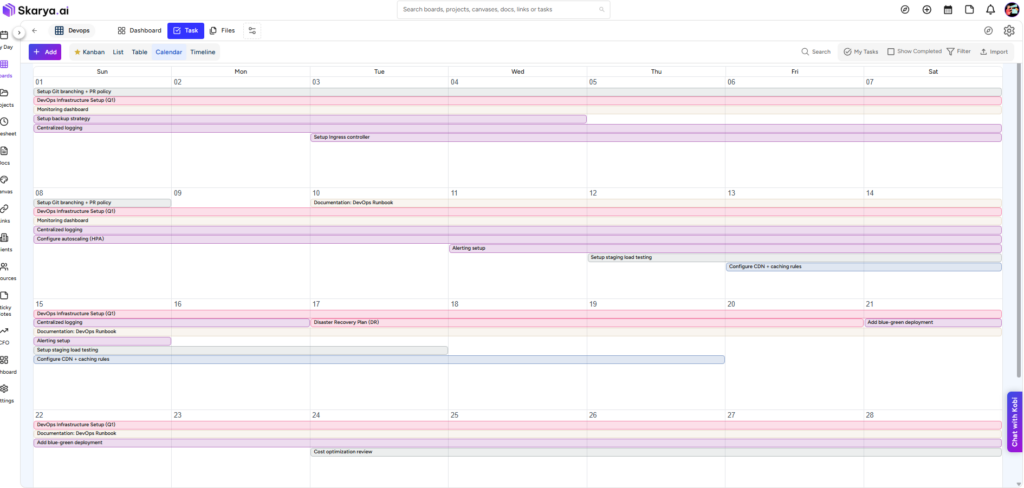
Calendar view is a date-based representation of your tasks. Every task with a start date, due date, or both appears as a block on a calendar grid plotted where it actually falls in time, not grouped by status or priority.
The result is a view that looks familiar (it resembles any calendar app you’ve used) but behaves like a project management tool: tasks carry status, assignee, priority, and labels. You can click any task to open its full detail without leaving the calendar.
Is calendar view the same as a Gantt chart?
Not quite. A Gantt chart (sometimes called timeline view) shows tasks as horizontal bars stretching across a date range built for tracking duration and dependencies across a project. Calendar view is grid-based: it shows tasks on the days they fall due, organised by Month, Week, Day, or Agenda. Gantt is better for project-level delivery planning. Calendar is better for day-to-day workload visibility and spotting date collisions across tasks.
When does calendar view outperform list and kanban?
The honest answer: not always. Calendar view has a specific advantage, and it shows up in three situations.
1. When you’re managing deadline-driven work.
If your team works toward fixed client deadlines, submission dates, or launch windows, a calendar view makes those dates impossible to miss. List view buries due dates in a column. Kanban shows them only if you look for them. Calendar makes them the entire interface.
2. When you’re planning capacity for the week ahead.
Before a busy delivery week, switch to Week view. You’ll see immediately if Tuesday has six tasks due or if someone is double-committed on Thursday. You can redistribute or reschedule before it becomes a firefighting exercise.
3. When you’re managing multiple clients or projects simultaneously.
With parallel workstreams, kanban tells you each project’s status independently. Calendar view shows all of them together across time which is where the conflicts actually live.
| 💡 Pro Tip: If your team works on campaigns, client retainers, or sprint-based delivery default to calendar view at the start of each week. Ten minutes reviewing the week’s task map prevents most ‘I didn’t realise that was due today’ conversations. |
How to use Month, Week, Day, and Agenda views and what each one is actually for
Calendar view isn’t one view. It’s four. Most people discover one sub-view and never switch. Here’s when each one earns its keep:
| Sub-view | Best used for | What you see |
| Month | High-level deadline overview, spotting clusters, planning the month ahead | All tasks plotted by due date across a full calendar month |
| Week | Weekly capacity planning, managing delivery load day by day | Tasks mapped across Monday to Sunday shows how loaded each day is |
| Day | Individual daily planning, detailed time awareness for a single day | All tasks due on one day, with time-block detail if set |
| Agenda | Async teams, distributed teams, chronological task lists | A running list of upcoming tasks in date order no grid, just sequence |
Month view is where most people start and where they stay. The mistake is staying there too long. When you’re inside a delivery week, switch to Week view. The granularity changes what you notice.
Can I see tasks from multiple projects or boards in one calendar view?
That depends on how your platform is configured. Some tools show calendar view per-board only. Others offer a workspace-level calendar that surfaces tasks across all active projects at once. The workspace-level view is where calendar view becomes genuinely powerful for multi-project teams it’s the only place where you see your total delivery commitment in one frame.
How calendar view connects to real delivery planning
There’s a version of calendar view that’s decorative you check it occasionally, nod at it, and go back to your kanban board. Then there’s a version that’s operational. The difference is whether you use it to make decisions, not just observe them.
Operational calendar use looks like this: before assigning a task with a Friday deadline, you open Week view to check what else lands that day. Before committing to a new piece of work, you check whether the relevant team member has capacity that week. When a client asks for an earlier delivery date, you open the calendar to see what it would displace then you have a real answer, not a guess.
| 💡 Pro Tip: Pair calendar view with your team’s meeting schedule. When you can see both tasks due on Wednesday and a three-hour client call Wednesday afternoon you stop making promises that the calendar would have flagged as unrealistic. |
This is the pattern we’ve seen consistently across agency and studio teams: the teams with the fewest delivery surprises are the ones who treat the calendar view as a commitment map, not a status board. Every date on that grid is a promise. Calendar view makes the promises visible.
Skarya’s Calendar View builds on this with four sub-views Month, Week, Day, and Agenda all accessible from within any board. Tasks show their full detail on click, and the view connects to your project schedule so the dates you’re seeing reflect actual delivery commitments, not just estimates. If you’re building a project schedule that holds up under real delivery pressure, calendar view is where the planning work shows up in practice.
What changes when your team works from a date-first view
Kanban is brilliant at showing flow. It tells you whether work is moving, where things are stuck, and what’s waiting. But flow without time context is incomplete. A task ‘in progress’ for three weeks on a kanban board looks exactly the same as one that’s been ‘in progress’ for three days unless you add dates.
Calendar view doesn’t make you better at the work. It makes the commitments behind the work visible. And when commitments are visible, teams make better decisions about what to take on, what to push back, and when to flag a risk before it becomes a problem.
The teams that skip calendar view aren’t bad at project management. They’re just working with partial information. Switch views and the picture changes.
Frequently Asked Questions
What types of tasks show up in calendar view?
Any task with a start date, due date, or both will appear in calendar view. Tasks without dates won’t show which is why calendar view works best in parallel with kanban or list view, not as a replacement. Use kanban or list to manage tasks in flight; use calendar view to manage when they’re committed to land.
How is calendar view different from timeline view?
Timeline view (Gantt-style) shows tasks as horizontal bars across a date range it’s built for tracking project duration, phases, and dependencies. Calendar view is grid-based and shows tasks on the specific days they fall due. Use timeline view for project-level planning and dependency mapping. Use calendar view for week-to-week workload visibility and deadline management.
Should I use calendar view or a project schedule for delivery planning?
Both, at different stages. A project schedule defines when major milestones and phases are committed to happen. Calendar view is how you track whether the day-to-day task work is actually pacing toward those milestones. They’re complementary: the schedule sets the frame, calendar view shows whether your team’s current week is on track inside it.